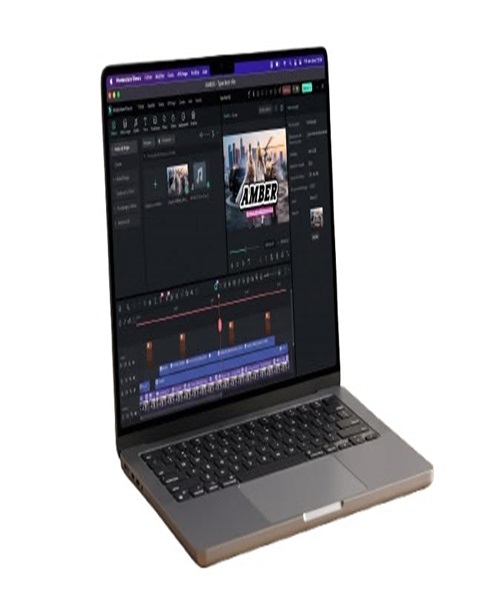
Video Playback Computer Hire and Rental Services in Kenya
Professional events frequently depend on computers to play videos, display presentations, deliver branded content, and support live audiovisual production. A video playback computer is particularly useful when event organizers need to manage digital files, prepare playlists, run playback software, or deliver content to a display system at specific points in a programme.
Janeson Rentals provides event equipment hire and rental solutions in Kenya for businesses, event planners, production teams, conference organizers, and exhibitors. If you need a computer dedicated to video playback for a conference, corporate event, exhibition, product launch, or live production, you can enquire about suitable equipment for your requirements.
Hiring a video playback computer can be a practical alternative to purchasing additional hardware for a temporary event. It also allows organizers to plan a dedicated playback workstation separately from the computer used for presentations, registration, or other administrative tasks.
The right equipment depends on the video files, playback software, screen resolution, audio requirements, and the complexity of the production.
What Is a Video Playback Computer?
A video playback computer is a desktop computer or laptop configured to play video content and deliver it to a compatible display or production system.
Unlike a basic media player, a computer can run different playback applications and may support a wider range of file formats, playlists, multiple outputs, and production workflows, depending on its hardware and software.
Video playback computers may be used to deliver:
-
Pre-recorded event videos.
-
Corporate presentations and promotional films.
-
Product demonstration videos.
-
Introductory and transition clips.
-
Training and educational content.
-
Video backgrounds and visual sequences.
-
Recorded speeches and other programme material.
-
Content for compatible LED displays and projection systems.
More advanced setups may use specialized playback software, graphics hardware, multiple display outputs, or dedicated video production tools. Not every computer supports these functions, so the equipment should be selected according to the intended workflow.
Why Hire a Video Playback Computer from Janeson Rentals?
Access to Temporary Playback Equipment
If you require a dedicated playback workstation for a single event or short production period, renting may be more practical than purchasing additional computer hardware.
Dedicated Playback Workflow
Using a separate computer for video playback can help keep the playback process organized. It also allows the team to prepare and test content without interfering with the computer used by the presenter or event administrator.
Support for Professional Events
A suitable computer can help deliver video content during conferences, award ceremonies, exhibitions, corporate presentations, product launches, and other events.
Flexible Software Requirements
Different productions use different playback applications. A computer can offer flexibility where the appropriate software is installed and compatible with the system.
Confirm software availability and licensing requirements before booking, especially if the production depends on a specific application.
Integration with AV Equipment
A video playback computer may connect to projectors, monitors, LED display systems, video switchers, or capture and production equipment, depending on the interfaces available.
Support for Complex Playback Needs
Where the event requires several video files, playlists, multiple display outputs, or specialized playback functions, a properly configured computer may be more suitable than a basic media player.
Applications of Video Playback Computer Hire in Kenya
1. Conferences and Corporate Events
Corporate events frequently use pre-recorded presentations, company profiles, sponsor videos, opening sequences, and other visual materials.
A dedicated playback computer can help the technical team organize the files and play them according to the event programme. For example, an opening video can be prepared in advance and played before a keynote speaker begins.
For larger events, the playback operator should coordinate with the stage manager and audiovisual team to ensure that the correct content appears at the right moment.
2. Product Launches and Brand Activations
Product launches may feature promotional films, product demonstrations, animations, and branded visual sequences.
A video playback computer can help deliver these assets through compatible display equipment. The team should test all files at the required resolution and verify that audio playback is synchronized with the video.
3. Concerts and Live Entertainment
Live entertainment productions may use computers to play pre-recorded visuals, intermission content, promotional clips, and other media.
Where visuals must be synchronized with lighting, audio, or stage cues, the production may require specialized playback software and additional hardware. These capabilities should be specified before hiring.
4. Weddings and Social Events
Weddings, anniversaries, award ceremonies, and celebrations may include photographs, recorded messages, video montages, and other multimedia presentations.
A playback computer can organize multiple files and support a planned sequence. Event organizers should prepare the files in advance and ensure that the operator knows when each video should play.
5. Exhibitions and Trade Shows
Exhibitors often display product videos and promotional material throughout an event. A video playback computer can support continuous playback when configured with compatible software and content.
For unattended displays, confirm that the system can loop the required files and recover appropriately after an interruption or restart.
6. Church Conferences and Religious Events
Churches and religious organizations may need computers for recorded messages, conference videos, teaching materials, and other visual content.
A dedicated playback system can help keep these materials separate from the computer used for slides or live presentation management.
7. Training and Educational Programmes
Training providers can use video playback computers to deliver recorded demonstrations, educational videos, and instructional material during workshops and seminars.
The appropriate computer should support the required files, playback resolution, and connection to the classroom or venue display.
Choosing the Right Video Playback Computer
Choosing a suitable computer requires more than checking whether it can play a video. The system must meet the production’s technical and operational requirements.
Processor and Graphics Performance
The computer should have enough processing and graphics capability to play the required video files smoothly at the intended resolution. Demanding high-resolution content, multiple outputs, or advanced playback software may require more capable hardware.
Memory and Storage
The amount of memory and storage required depends on the playback software, operating system, and media files. Large video libraries may require additional storage space.
Where possible, prepare the content locally rather than depending entirely on an internet connection during an important event.
Video Outputs
Check the computer’s available outputs, such as HDMI, DisplayPort, or supported USB-C video output. Confirm that the output can connect to the intended projector, monitor, switcher, or video processor.
If the display uses a different interface, the setup may require a compatible adapter or converter.
Playback Software
The computer should support the software needed to play the files and manage the desired workflow. If you need playlists, cue-based playback, or specialized event playback functions, specify these requirements before booking.
Resolution and Frame Rate
Confirm the resolution and frame rate of the source videos and the receiving display. The complete system must support the intended playback format.
Audio Connectivity
If the videos contain sound, check how audio will reach the venue’s sound system. This may be through HDMI, a supported audio output, or another compatible connection.
Reliability and Backup Planning
For high-profile events, test the computer and all media files in advance. Prepare backup copies of the content and, where practical, a backup playback device or alternative playback method.
Disable unnecessary notifications and automatic interruptions during the presentation. Confirm that power settings will not cause the computer to sleep while content is playing.
Video Playback Computer Rental for LED Screens and Projection
Large events may use LED screens, projection systems, or multiple monitors to display visual content. A video playback computer can provide the source content, but it may not replace the additional equipment needed to process and distribute the signal.
For LED walls, the required setup depends on the display processor, input format, resolution, screen configuration, and production software. Some systems can accept a standard video output, while others require specialized processing or playback workflows.
For projection, confirm the connection type, supported resolution, and distance between the computer and projector. Long cable runs may require suitable extenders or signal distribution equipment.
If the production uses several screens with different content, confirm that the computer and software support the required number of independent outputs. A standard computer may not be able to drive every configuration without additional graphics hardware or specialized equipment.
These details should be discussed with the technical team before the rental is finalized.
Preparing a Video Playback Computer for an Event
A clear preparation process can reduce playback errors on event day.
Step 1: Organize the media files. Name the files clearly and arrange them in the intended playback order.
Step 2: Confirm compatibility. Test each video using the playback software and computer that will be used for the event.
Step 3: Verify display settings. Check resolution, refresh rate, aspect ratio, and output selection.
Step 4: Test audio. Confirm the correct output device, volume level, and synchronization.
Step 5: Rehearse the programme. Coordinate with the event manager, stage manager, presenter, and AV operator to confirm when each clip should play.
Step 6: Prepare backups. Store backup copies of essential content and make sure the playback operator can locate them quickly.
Step 7: Secure the setup. Arrange power connections and cables safely, keep the computer ventilated, and position it where the operator can access it.
These steps are especially important when video playback forms part of a live programme that cannot easily be paused or repeated.
Video Playback Computer Hire Across Nairobi and Kenya
Janeson Rentals provides event equipment rental solutions for clients organizing professional events in Nairobi and across Kenya. Event organizers, production companies, conference planners, exhibitors, and institutions can enquire about video playback computer availability.
When requesting a quotation, provide your event date, location, rental duration, type of content, required resolution, playback software, number of displays, and audio requirements.
If you need a laptop, monitor, projector, LED display, HDMI cables, adapters, or related audiovisual equipment, include these requirements in your enquiry. Confirm hardware specifications, software availability, delivery arrangements, and rental terms directly with Janeson Rentals.
Frequently Asked Questions
1. What is a video playback computer used for?
It plays and manages video content for conferences, presentations, exhibitions, live events, and other audiovisual productions.
2. Can I hire a video playback computer for a corporate event?
You can enquire with Janeson Rentals about availability for corporate functions, conferences, product launches, and exhibitions.
3. Is a video playback computer different from a media player?
Yes. A computer can run playback applications and support flexible workflows, while a dedicated media player is often designed for a more specific set of playback functions. The best option depends on the event requirements.
4. Can a playback computer run videos on an LED screen?
It may serve as the video source, but compatibility depends on the LED processor, signal format, resolution, and required production workflow.
5. Can I hire a playback computer with a projector?
You can request a combined quotation for a computer and compatible display equipment, subject to availability.
6. Should I bring my own videos?
You should confirm the content handover process with the rental provider and prepare files in advance. Verify file compatibility and test all content before the event.
7. What information should I provide when requesting a quote?
Include the event date, venue, rental duration, video formats, required resolution, number of displays, software requirements, and audio connections.
Book Video Playback Computer Hire and Rental with Janeson Rentals
Ensure that your event’s video content is prepared for reliable playback with suitable computer equipment. Whether you are organizing a conference, exhibition, product launch, concert, or corporate presentation, careful equipment selection and advance testing can help support a smooth programme.
Contact Janeson Rentals to enquire about video playback computer hire and rental in Kenya, confirm availability, and request a quotation for your event’s technical requirements.